Standalone HDMI Recorder with Passthrough: Do You Still Need an HDMI Splitter?
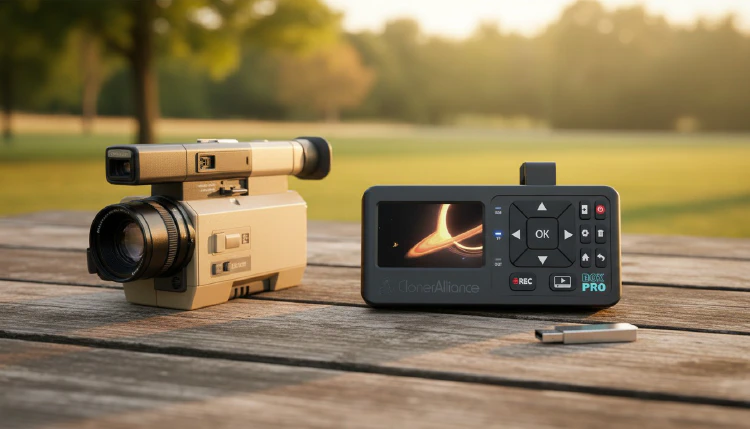
If you record a camera, a game console or a computer with a standalone HDMI recorder, you usually want to keep watching the picture on your TV or monitor at the same time. Many people assume this needs an HDMI splitter: one output to the display, one to the recorder.
With a recorder that has HDMI passthrough, you usually don’t. This article explains what passthrough does, how it works on ClonerAlliance standalone recorders, and the few cases where a splitter is still useful.
What HDMI passthrough does
A recorder with passthrough sits between your source and your display:
Source (camera, game console or computer) → HDMI IN on the recorder → HDMI OUT on the recorder → TV or monitor
The recorder saves the video to its storage (a USB drive or memory card) and, at the same time, sends the picture on to your display through its HDMI OUT port. You see what you are recording without a second cable path, and without a computer.
Passthrough on ClonerAlliance standalone recorders
Each of these recorders has one HDMI OUT port for passthrough. The passthrough resolution and the recording resolution are not always the same:
| Recorder | Passthrough (HDMI OUT) | Recording | Passthrough latency |
|---|---|---|---|
| ClonerAlliance UHD Halo | Up to 4K@60fps | Up to 4K@60fps | About 50ms |
| ClonerAlliance UHD Pro (current version) | Up to 4K@60fps | Up to 4K@30fps | Under 100ms |
| ClonerAlliance UHD Pro Max | Up to 4K@60fps | Up to 4K@30fps | Under 100ms |
| ClonerAlliance Box Pro Pocket | Up to 1080p@60fps | Up to 1080p@60fps | Under 100ms |
A few details are worth knowing:
- Passthrough and recording resolution can differ. On UHD Halo, the passthrough resolution and the recording resolution are set independently, so you can, for example, record at 1080p while your display still receives 4K. On UHD Pro and UHD Pro Max, the display can receive 4K@60fps while the recorder saves 4K@30fps.
- On-screen indicators stay off the recording. On UHD Pro and UHD Pro Max, the recording indicator is shown only on the HDMI OUT picture and is not saved in the video file.
- Box Pro Pocket has its own screen. Its built-in 3-inch screen lets you watch while recording even without a TV. When you connect a display to its HDMI OUT, the built-in screen turns off, so only one of them shows the picture at a time. See Using HDMI passthrough for viewing and recording with ClonerAlliance Box Pro Pocket.
Gaming through the passthrough
If you play through the recorder, latency matters more than it does for watching. UHD Halo’s passthrough latency is about 50ms, the lowest figure listed above. For the smoothest passthrough on UHD Halo, use HDMI 2.0 cables for both HDMI IN and HDMI OUT, and set the HDMI OUT resolution to match your TV’s native resolution; see Optimize gaming performance with ClonerAlliance UHD Halo.
When you still need an HDMI splitter
Passthrough covers the usual “watch while recording” setup. A splitter is still useful in these cases:
- You want a picture on the TV even when the recorder is off. Passthrough works only while the recorder is powered on. If you want to watch the source without turning the recorder on, connect it like this: source → splitter → recorder → TV. See Can I turn off a ClonerAlliance product while watching TV?
- You want the picture on two displays at once. Each of these recorders has one HDMI OUT port, so it feeds one display. For a second display, add a splitter.
- Your recorder has no HDMI OUT port at all. All the recorders in the table above have one, so this applies only to other devices.
If none of these apply, you can skip the splitter: fewer cables and fewer connections to check.
Which recorder to choose
- ClonerAlliance UHD Pro: 4K@60fps passthrough with 4K@30fps recording, without a computer.
- ClonerAlliance Box Pro Pocket: 1080p@60fps recording with a built-in screen, for recording where there is no TV.
- ClonerAlliance UHD Halo: 4K@60fps recording and passthrough, with about 50ms passthrough latency.
If you are not sure which one fits your setup, see the product pages above or contact our support team.