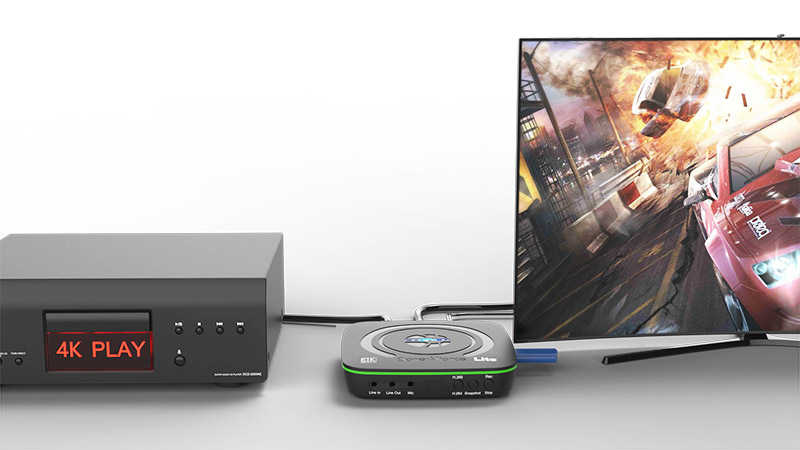
How to record videos to the USB storage device with ClonerAlliance UHD Pro?
Connect
1. Connect the video player to IN port on ClonerAlliance UHD Pro via an HDMI cable.
Connect ClonerAlliance UHD Pro from OUT port to TV via an HDMI cable.
Plug the USB storage device or insert a TF card into ClonerAlliance UHD Pro.
4. Plug the power adapter into the power socket and plug the other end into the 12V/1A port of ClonerAlliance UHD Pro.
Power on ClonerAlliance UHD Pro after all devices and cables are well connected.
Tips:
For better user experience, please use a premium USB flash drive or mobile hard disk with high quality to avoid problems caused by disk quality.
Tip: The USB flash drive is not included in the product box. You need to purchase it separately.
Record/Capture
Power on all devices, the video image from the video player will be displayed on TV and the top LED will illuminate solid. The top LED indicates the input resolution: blue for 1080p and below, green for 4K resolution. The side LED indicates the storage device: green for USB storage, blue for TF card. If the top LED is blinking blue and green alternately, that indicates there is no input signal detected.
Before recording, you can select H.264 or H.265 encoding through the OSD menu. Navigate to Record Settings > Video Codec to choose your preferred encoding format. You can also adjust the video bitrate (up to 50Mbps) and recording resolution in the same menu.
Press the Rec/Stop button on the capture box, then the LED will blink, which indicates the capture box is in the process of recording. You can press the Pause button to pause recording and press it again to resume.
Press the Rec/Stop button again on the capture box to stop recording. The LED will blink while the recorded video is being saved.
When the LED returns to solid, it indicates the video has been saved successfully. Then you can remove the USB storage device or TF card and play the recorded video on your computer.