Why do the HDMI output and recorded video look washed out on ClonerAlliance UHD Pro?
A faded, greyish or low-contrast picture on the HDMI output and in your recordings is almost always an HDMI color range mismatch - Full Range and Limited Range being mixed somewhere along the chain - rather than a fault in the ClonerAlliance UHD Pro. This article shows you how to narrow the problem down step by step, and what to send us if it does not go away.
Note
If the picture looks purple, green or has almost no color at all, that is a different problem with a different cause. See Why the picture is purple on the screen? and Why does the video displayed on TV lack of color? instead. This article is about the picture looking pale and low in contrast while the colors themselves are still correct.
Quick Checks to Try First
Work through these four checks in order, changing one setting at a time and looking at the picture again after each change.
Turn HDR off on the source device. UHD Pro captures in SDR, so an HDR signal has to be converted before it is recorded. HDR that is not handled correctly by the display is a very common cause of flat, lifeless colors. On a PS5 or Xbox, set the video output to SDR; on a computer, disable HDR in the operating system display settings. See Why does the video displayed on TV lack of color? for the related source settings.
Change the RGB range on the source device. Most sources expose this as RGB Range, HDMI Video Range, Output dynamic range or Color space, with the choices Auto, Limited and Full. Try each value and watch the picture. On a PS5 it sits in the video output settings, on an Xbox it is the color space option, and on a Windows PC it is in the NVIDIA or AMD graphics control panel.
Match the range setting on your TV or monitor. Televisions have an equivalent setting, usually named HDMI Black Level, HDMI Range, HDMI Dynamic Range or Black Level, under the picture or external-input settings. The exact name varies by brand. If the source is set to Limited, the TV must not be set to Full, and the other way around.
Play the recorded file on a computer. This separates a display problem from a recording problem. Use the table further down in this article to read the result.
Note
Change one setting at a time. If you change the source and the TV together, you cannot tell which of the two was wrong in the first place.
What Full Range and Limited Range Mean
HDMI carries video in one of two quantization ranges:
Full Range uses the values
0-255, where 0 is black and 255 is white.Limited Range, also called video range, uses
16-235, where 16 is black and 235 is white.
Both carry exactly the same picture. Neither is better than the other, and Full Range is not a “more vivid” or “higher quality” mode - the two are simply different ways of encoding the same black and white levels.
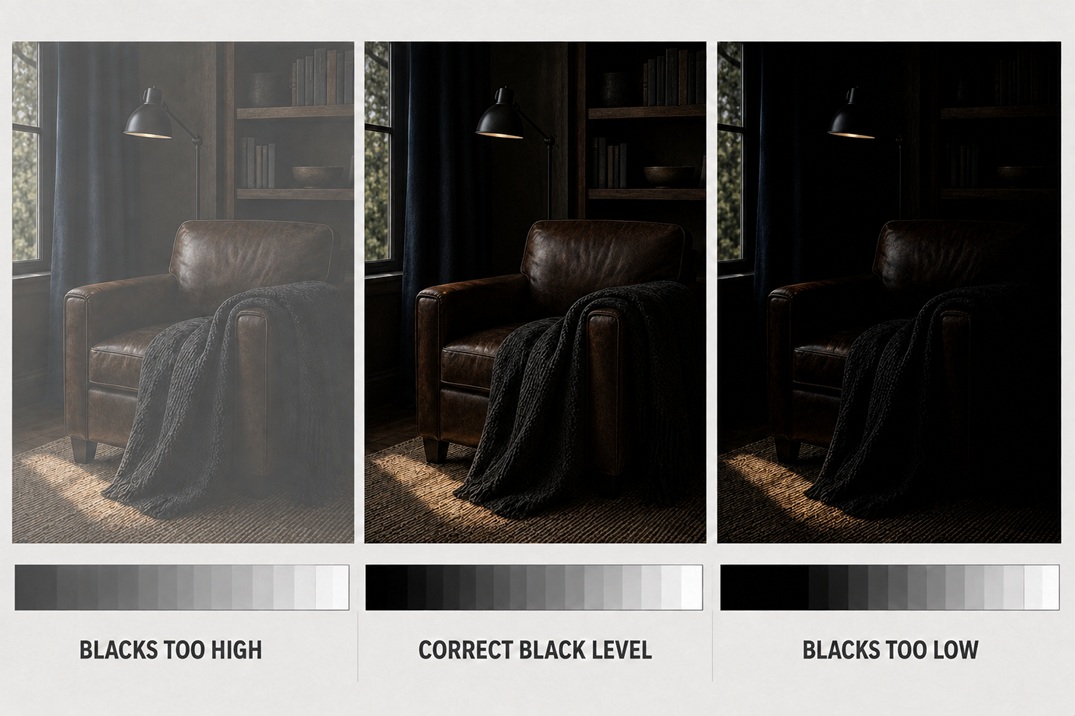
Trouble appears only when the two ends of a connection disagree. If a Limited Range signal is read as though it were Full Range, the value 16 is no longer treated as black and 235 is no longer treated as white. Blacks are lifted to grey, whites are pulled down, contrast collapses, and the result looks exactly like the washed-out, low-saturation picture described in this article. The opposite mismatch produces the opposite fault.
Source outputs |
It is interpreted as |
What you see |
|---|---|---|
Limited (16-235) |
Full (0-255) |
Washed out, grey blacks, low contrast |
Full (0-255) |
Limited (16-235) |
Crushed blacks, lost shadow detail |
Limited (16-235) |
Limited (16-235) |
Correct picture |
Full (0-255) |
Full (0-255) |
Correct picture |
The rule to remember is short: the source, the recorder and the display must all use the same range.
Color Range Is Not the Same as Color Format
Color range (Full or Limited) and color format (RGB, YCbCr 4:4:4, 4:2:2, 4:2:0) are two different settings, and they fail in different ways. A color range mismatch changes brightness and contrast across the whole picture. A color format problem instead produces wrong or missing colors - a purple cast, or color that disappears altogether.
UHD Pro does not support a source set to 4:2:2. If your source device is locked to 4:2:2 output, set it to 4:4:4 or 4:2:0, or lower its output resolution to 1080p. Full details are in Why the picture is purple on the screen?.
Is It the Passthrough, the Recording, or the TV?
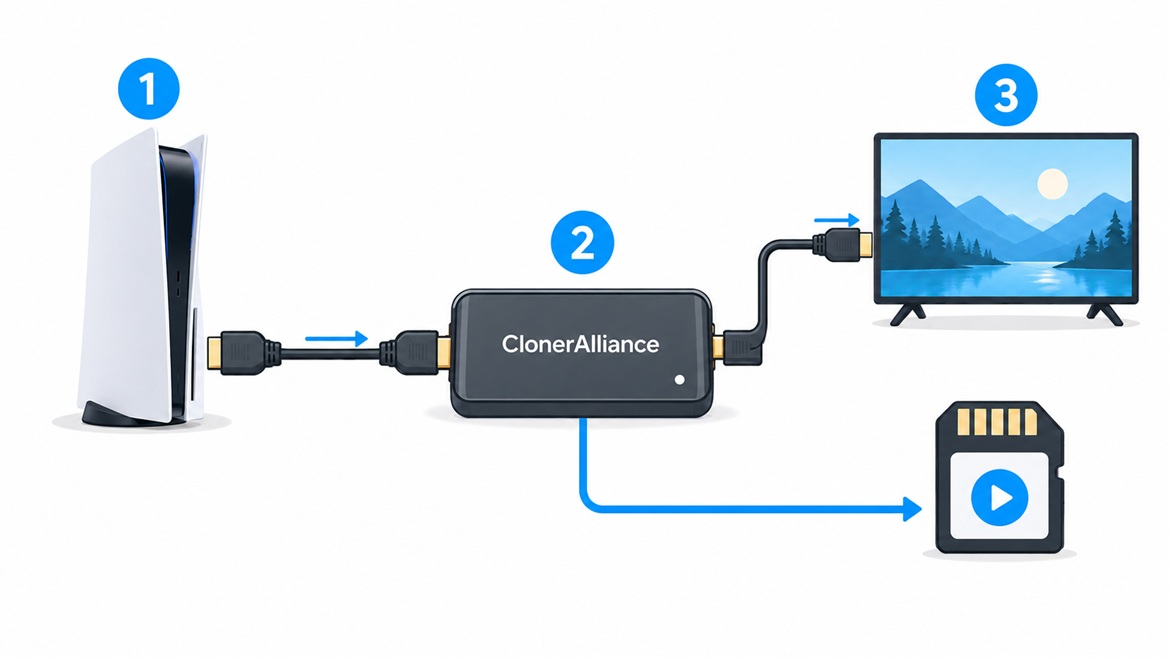
Compare what you see on the TV connected to HDMI OUT with the recorded file played back on a computer. The combination of the two tells you which part of the chain to look at.
On the TV (HDMI OUT) |
In the recorded file |
What to check |
|---|---|---|
Washed out |
Washed out |
Source range setting or the input signal - redo checks 1-3. |
Correct |
Washed out |
The media player. Try another player on the computer. |
Washed out |
Correct |
The TV HDMI Black Level / HDMI Range setting. |
Correct |
Correct |
The TV picture mode or ambient light, not the signal. |
If both the passthrough picture and the recording are affected, the problem lies upstream of the point where the signal splits - that is, in how the incoming signal is being interpreted - and not in the recording stage alone. That is the case to report to us with the details below.
Limited Range and Full Range Firmware
The publicly released UHD Pro firmware processes video in Limited (video) Range, which matches the great majority of HDMI video sources: game consoles, media players, cameras and set-top boxes in their default settings.
For setups where the source is confirmed to output RGB Full Range - for example a computer whose graphics driver is explicitly set to full RGB output - a separate Full Range firmware build exists. Contact ClonerAlliance customer support with the information listed in the next section and we will tell you whether it applies to your setup.
Important
Full Range firmware is not a brighter, more saturated or higher quality version. Full Range and Limited Range only describe how black and white levels are encoded; when the whole chain is matched, both look the same. Installing Full Range firmware while your source still outputs Limited Range will not improve the picture, and it can make shadow detail disappear instead.
You can check the version currently installed with the remote control under Menu -> System settings -> Firmware version. See also Shall I update the product’s firmware once after receiving the product?.
What to Send Us When You Contact Support
If the picture is still washed out after the checks above, send the following to ClonerAlliance customer support at support@cloner-alliance.com so that we can reproduce your setup exactly. See What is the best method to get help from ClonerAlliance? for the available contact channels.
Product model, serial number, and the firmware version shown under Menu -> System settings -> Firmware version
Make and model of the source device
Whether HDR is On or Off on the source
The color format on the source: RGB, YCbCr 4:2:2 or 4:2:0
The RGB range on the source: Full, Limited or Auto
The HDMI range or black level setting on the TV or monitor
Whether the HDMI output is affected, whether the recording is affected, or both - use the table above
A photo or screenshot of the display settings menu on the source device
Important
Please send us the recorded file itself, or a lossless screenshot - not a photo of your TV screen. A photograph of a screen is reshaped by the camera automatic exposure and white balance, by the screen brightness, by the TV picture mode and by the room lighting, so it cannot be used to judge black level, contrast or saturation.
Tip
A grayscale ramp, a black-and-white level pattern or a set of color bars tells us far more than a photo of a menu or a game scene. If you can feed such a test pattern from your source and record it, please include that recording.
Related articles:
Why does the video displayed on TV lack of color? Why the picture is purple on the screen? How to deal with the color bars displayed on screen when using PC to capture or edit videos with ClonerAlliance UHD Pro? Shall I update the product’s firmware once after receiving the product?