Why do I hear my own microphone in headphones connected to AUX on ClonerAlliance UHD Halo?
This article explains why headphones connected to the AUX port of the ClonerAlliance UHD Halo carry your own microphone along with the HDMI input audio, and how to turn that microphone sound off with the Mic Monitoring setting.
Symptom
When a microphone is connected to MIC IN and headphones are connected to AUX, you hear your own voice in the headphones along with the HDMI input audio.
Solution: Turn Mic Monitoring Off
The latest UHD Halo firmware adds a Mic Monitoring setting that controls whether the microphone is included in the AUX output.
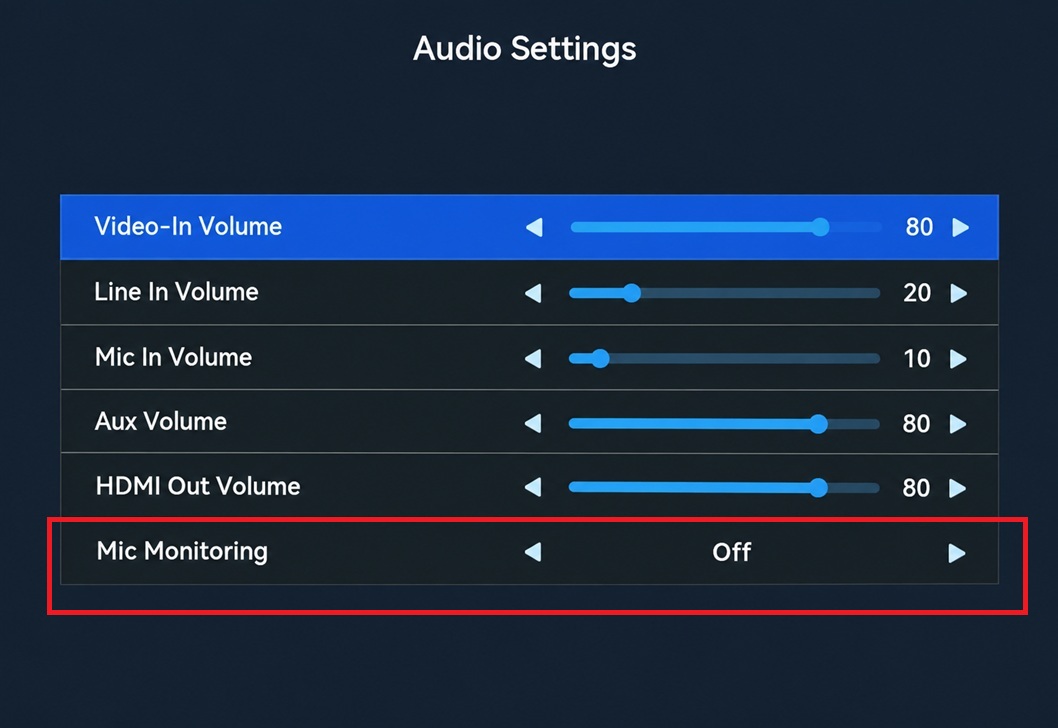
Press MENU on the remote control to open the on-screen menu.
Go to Audio Settings.
Move down to Mic Monitoring and set it to Off.
Your microphone is now removed from the AUX output, so headphones connected to AUX carry the HDMI input audio only. Set Mic Monitoring back to On whenever you want to hear yourself again.
Note
This setting changes monitoring only. Your recordings are not affected: they still contain the full mix of HDMI input audio and your commentary.
Note
If Mic Monitoring is not listed in the Audio Settings menu, your unit is running an older firmware version. Update it first — see How to update firmware on ClonerAlliance UHD Halo?.
Why the AUX Port Works This Way
The AUX port is designed as a program/line output for feeding downstream audio recording equipment such as external recorders, mixers, or streaming setups. By design it therefore carries the full program mix — HDMI input audio and MIC IN together, which is exactly what downstream equipment needs.
The AUX port was not originally intended as a headset monitoring port, which is why earlier firmware always included the microphone in its output. The Mic Monitoring setting was added so headset users can switch that microphone sound off.
Alternative: Monitor with an HDMI Audio Extractor
If your unit still runs an older firmware, or if you prefer not to monitor through the recorder at all, you can place an inexpensive HDMI audio extractor between your source and the UHD Halo.
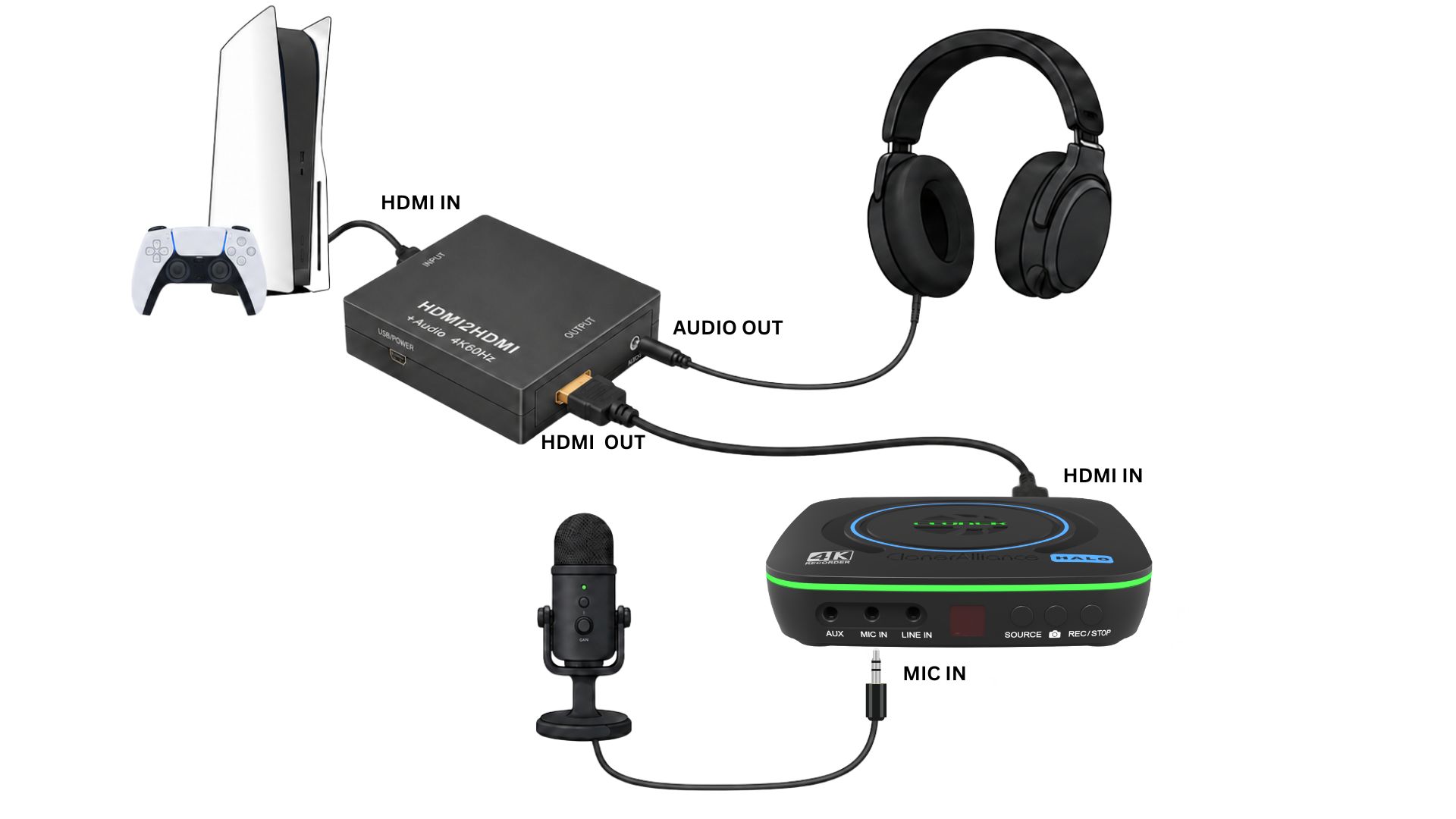
This gives you pure game/source audio in your headset with true zero latency — the extractor feeds your headset directly from the HDMI signal, while monitoring through any capture or recording device always adds some processing delay. This type of direct audio routing is also widely used by video creators and livestreamers.
Setup steps:
Prepare a standard HDMI audio extractor. Any model works — search for “HDMI audio extractor 4K60”.
Connect the devices as follows:
Source HDMI OUT → extractor HDMI IN
Extractor HDMI OUT → UHD Halo HDMI IN
Extractor 3.5mm audio output → your headset
Microphone → UHD Halo MIC IN
Power the extractor via its USB port. Any USB power source works — most extractors will not operate without it.
Note
Your recordings are completely unaffected by this setup: they still contain the full mix of HDMI source audio and your commentary.
Frequently Asked Questions
Does turning Mic Monitoring off change what gets recorded?
No. The recording always contains the HDMI input audio plus your microphone, regardless of how you monitor.
Can I just lower the Mic In Volume instead?
That is not the same thing. The Mic In Volume setting (Menu → Audio Settings) affects both the AUX output and your recording — turning it down removes your commentary from the recorded file as well. Use Mic Monitoring instead, which affects only what you hear.