Features
Graphical Configuration
- No need to manually edit config files
- Adjust resolution, frame rate, bitrate
- Configure loop recording settings
One-Click Firmware Upgrade
- Automatic update detection
- Download and install seamlessly
- Built-in integrity verification
Video Playback & Management
- Play recordings directly in app
- Batch delete and organize files
- Export videos to device storage

Multi-Platform Support
- Android, iOS, Windows, macOS
- Consistent experience across devices
- Cloud activation for up to 5 devices
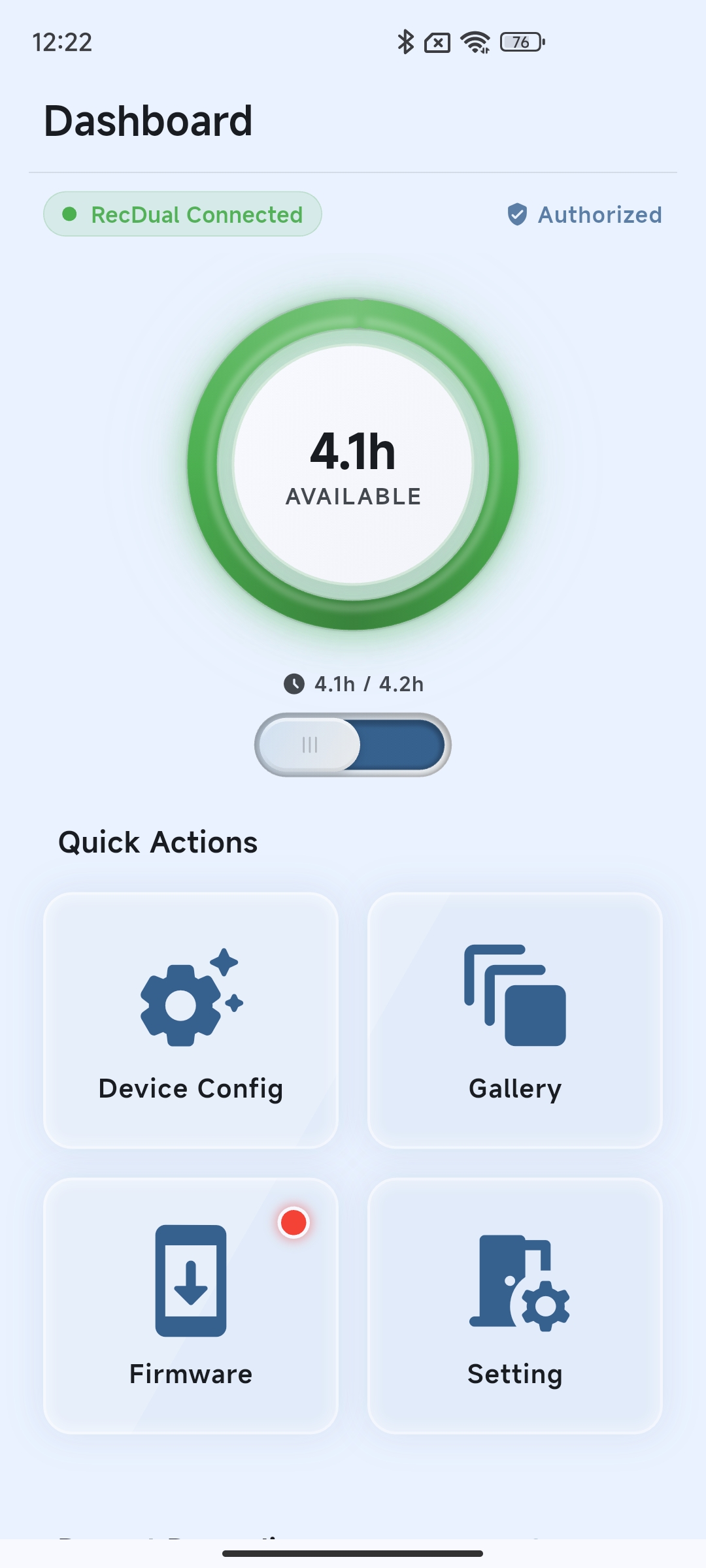
Dashboard
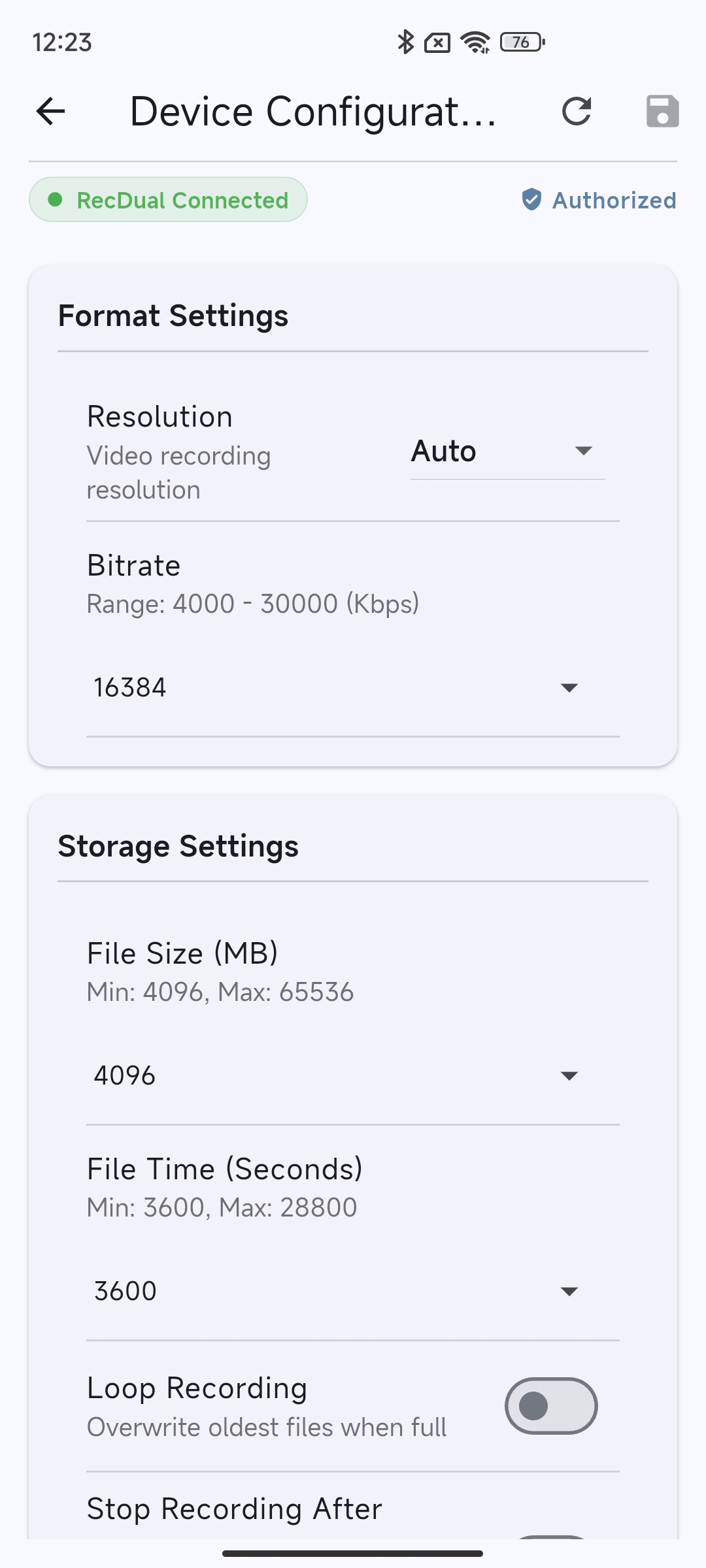
Configuration
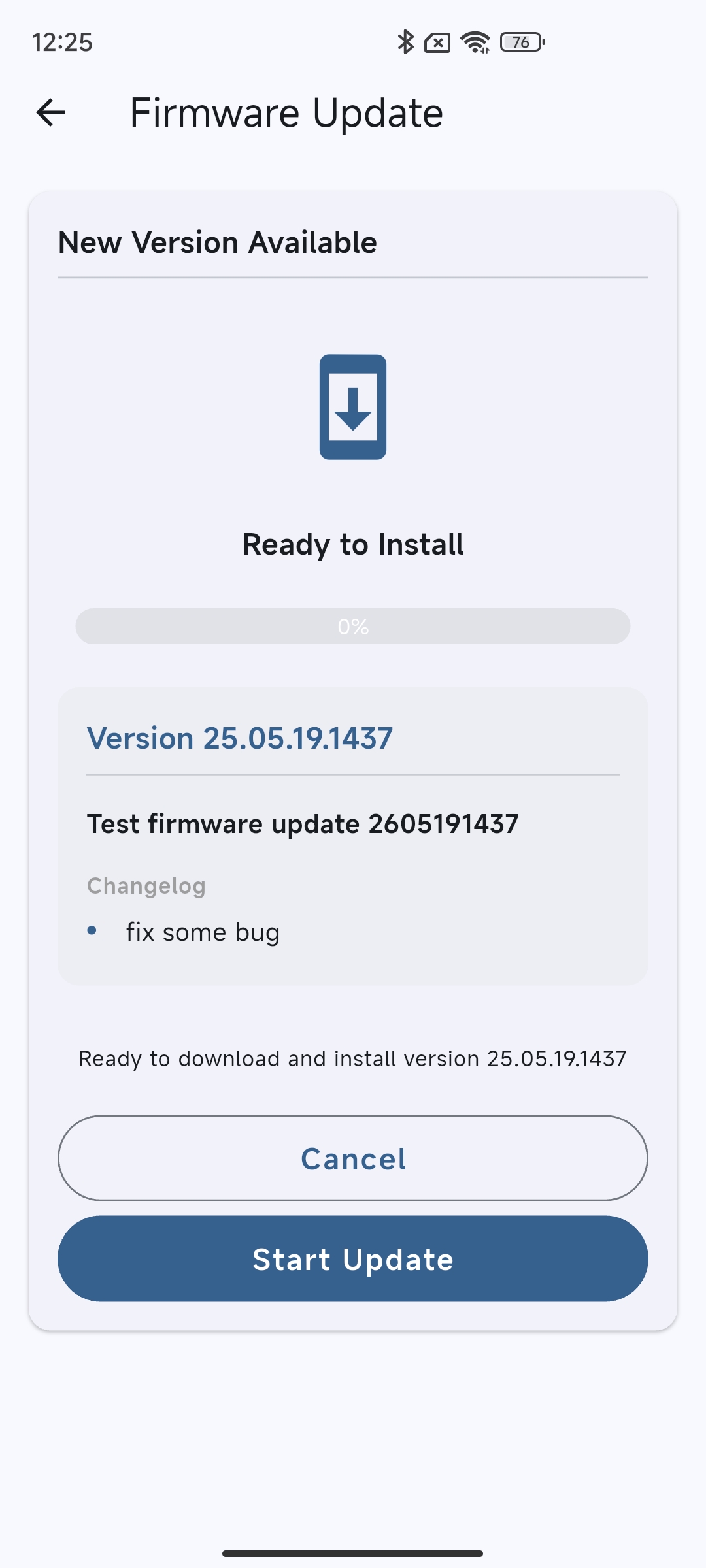
Firmware Update
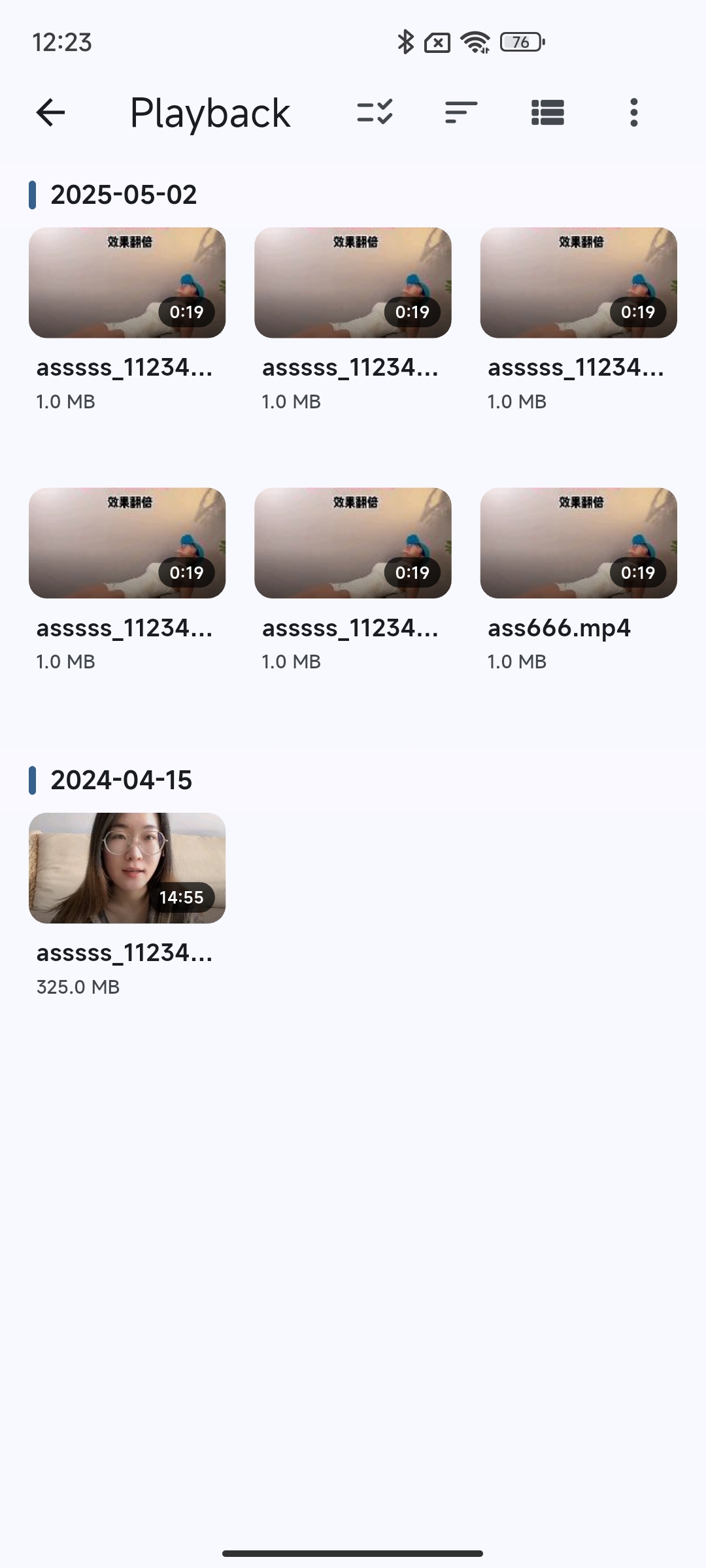
Playback
Getting Started
1
Connect
Use a USB-C data cable to connect your RecDual Dongle
2
Activate
Scan the QR code or enter your 10-digit serial number
3
Authorize
Grant root directory access for full features
Getting Started
1. Connect Your Device
Use a USB-C cable that supports data transfer to connect RecDual Dongle to your phone or computer.
2. Activate the App
First-time use requires cloud activation:
- Mobile: Scan the QR code on your device or enter the 10-digit serial number
- Desktop: Enter the serial number manually
3. Bind Your Device
Select the storage path to establish management link:
- Root Directory (Recommended): Full features including firmware upgrade
- Videos Folder: Limited mode, manual firmware upgrade required
Download RecDual Link
Free on all platforms
Android 8.0+ (OTG) · iOS 14.0+ · Windows 10+ · macOS 10.15+
Works With
ClonerAlliance RecDual Dongle (CA-1290)System Requirements
| Platform | Requirements |
|---|---|
| Android | Android 8.0+, OTG support |
| iOS | iOS 14.0+ |
| Windows | Windows 10+, USB port |
| macOS | macOS 10.15+ |
| Connection | USB-C data cable (not charging-only) |
Service

Responsive Technical Support

2-Year Warranty